Oscar Craven
Who’s looking?

The page reorders for you. Links keep your choice.

Work

AI image and video generation tool

Many image and video models in one canvas, connected into the studio pipeline.

AI Implementation Consultant at AcmeAI & FX: product, AI operations, hiring and partnerships. I built the tool, July to October 2026.

Send to ShotGrid: shipped August 2026

Two minutes? Read the five frames, then see what changed for artists.

Employer work. This page shows outcomes and the shape of the system only. The screens are representative mock-ups, not captures of the studio’s tool, with made-up shot codes.

The studio’s AI image and video tool
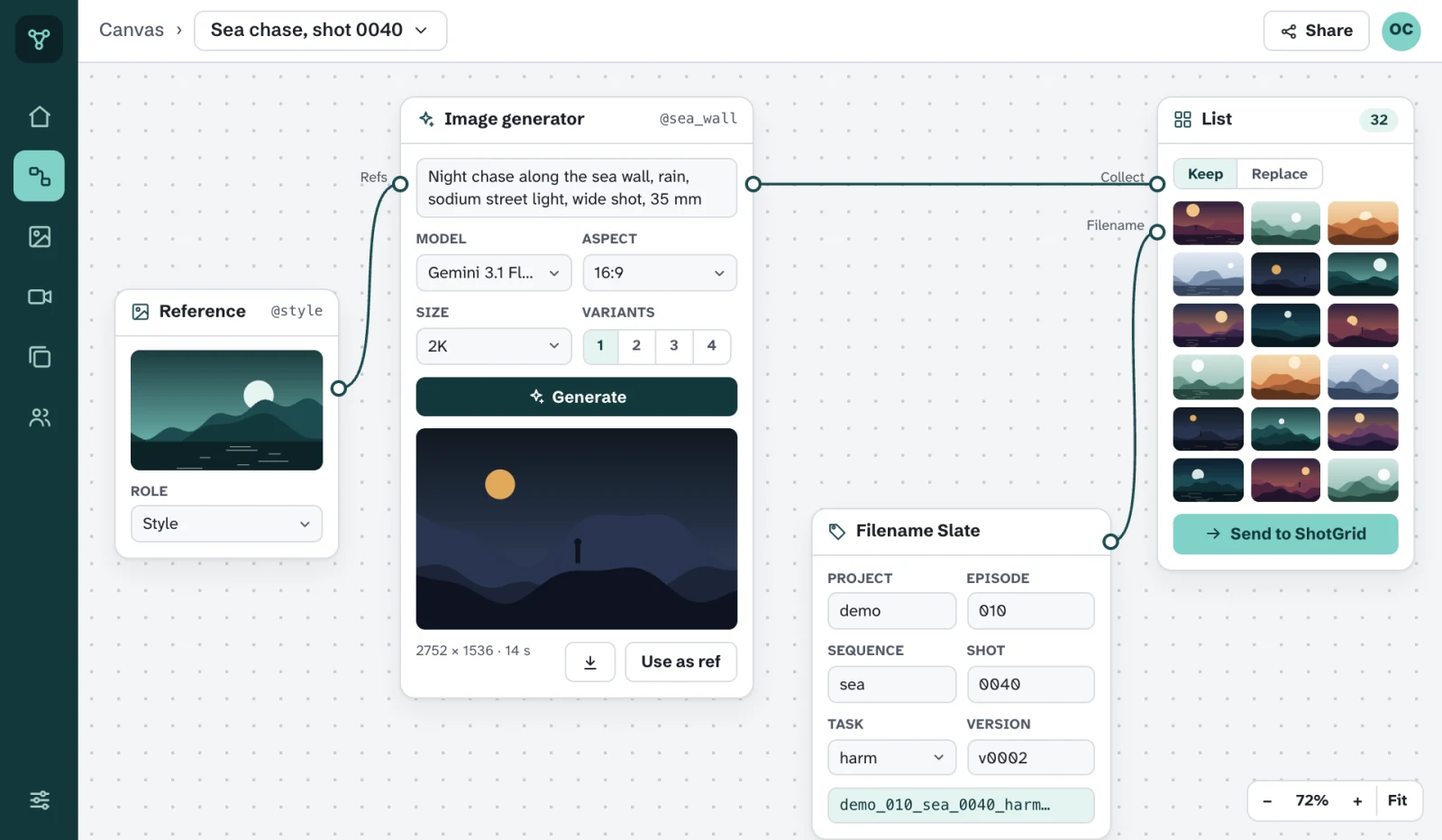
A representative canvas: a reference wired into an image generator showing its result, a List holding 32 outputs with a Send to ShotGrid button, and a Filename Slate that builds the file name.
Images are representative.

The short version

Five frames. The last one opens the long read.

  1. AI image and video tool

    What it isThe studio’s canvas for making AI images and video, across many models.
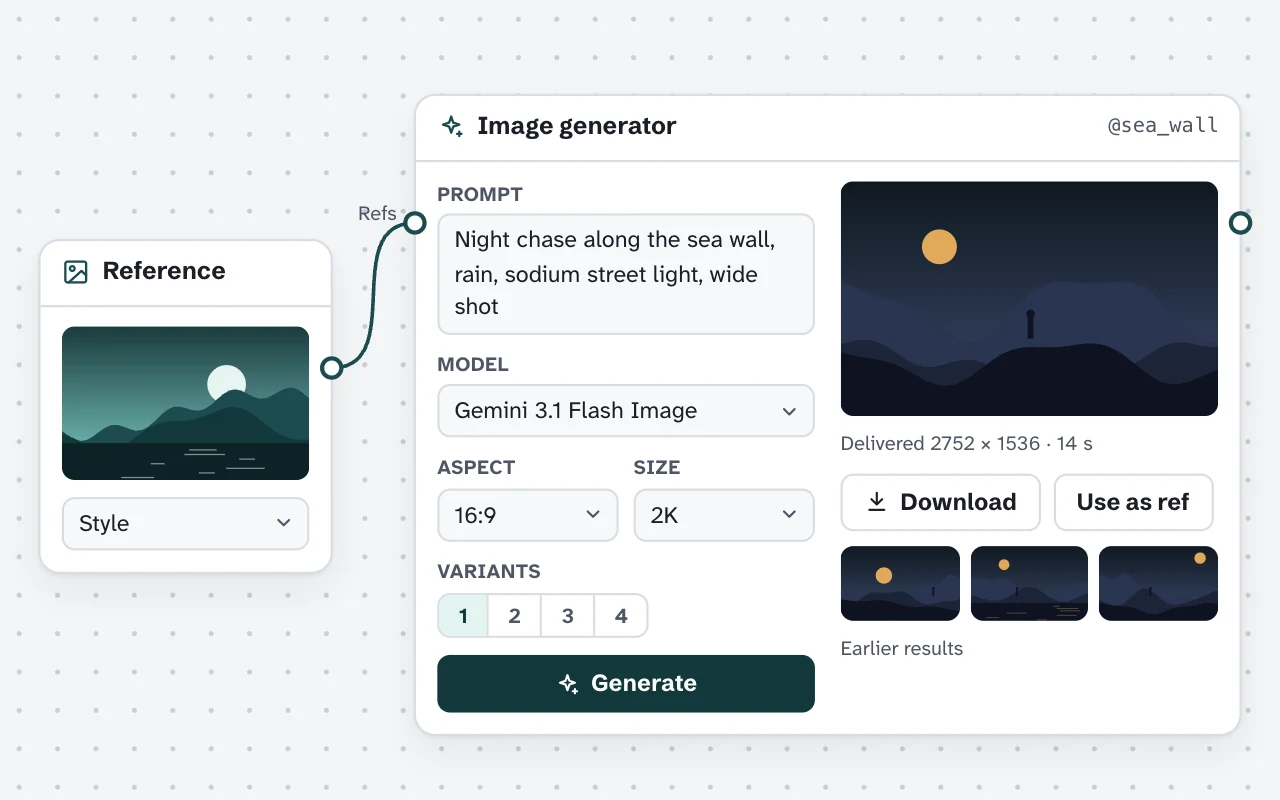
  2. An image generator node with its prompt, model, size and result.

    Who forArtists at a film studio. I was the first hire. The team is now 40+.

    Headcount as of October 2026.
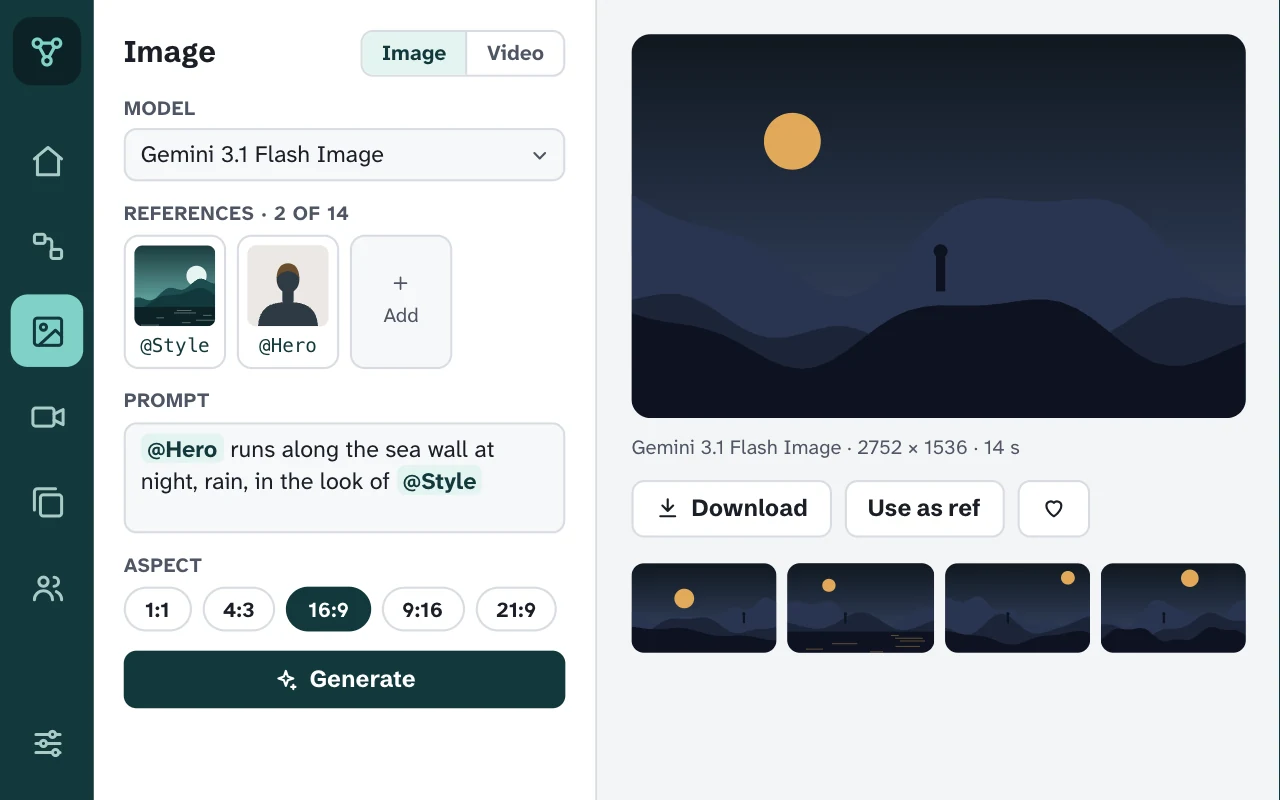
  3. The Image form: model, reference slots, prompt and aspect buttons, with the result beside it.

    What I didI built the tool, and the send to ShotGrid.

    July to October 2026.
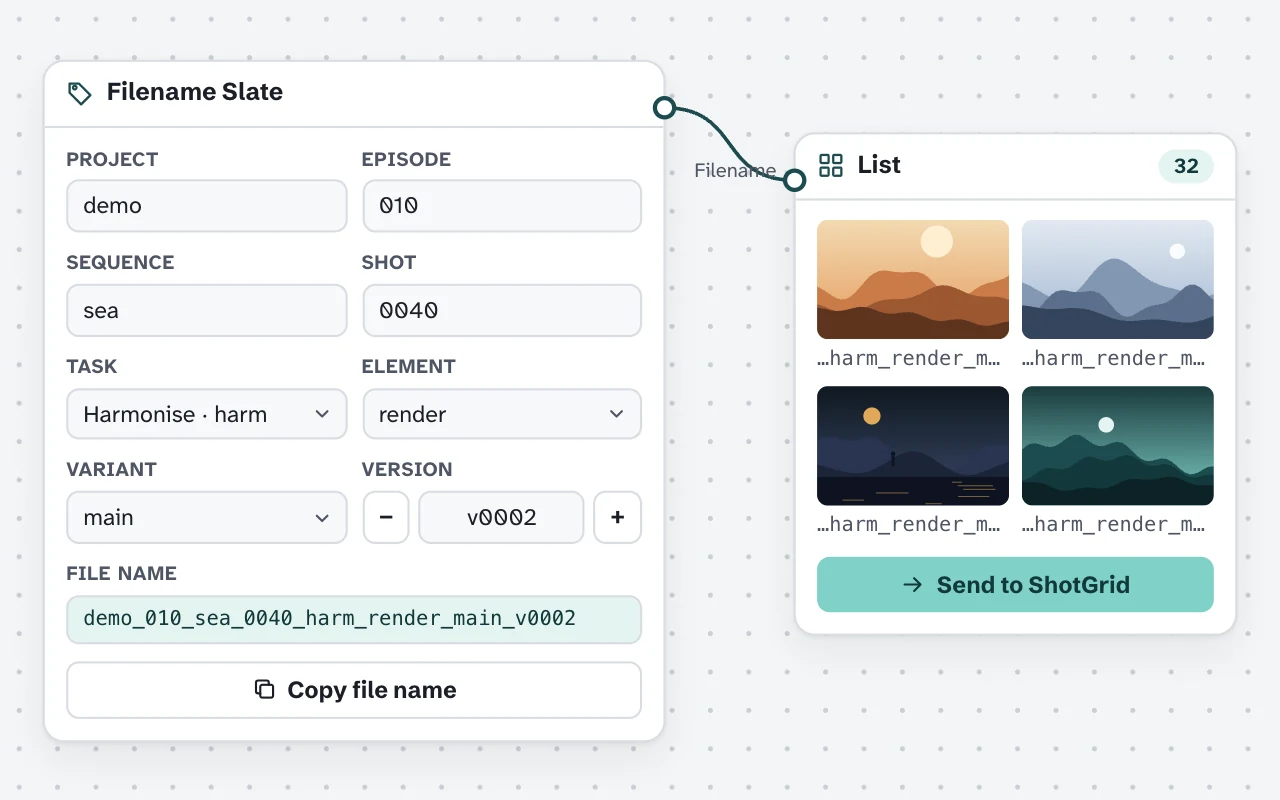
  4. The Filename Slate turns made-up shot codes into a studio file name, and passes it to a List.

    What happenedArtists send work straight into ShotGrid. File names pass the checks first time.

    Shipped August 2026.
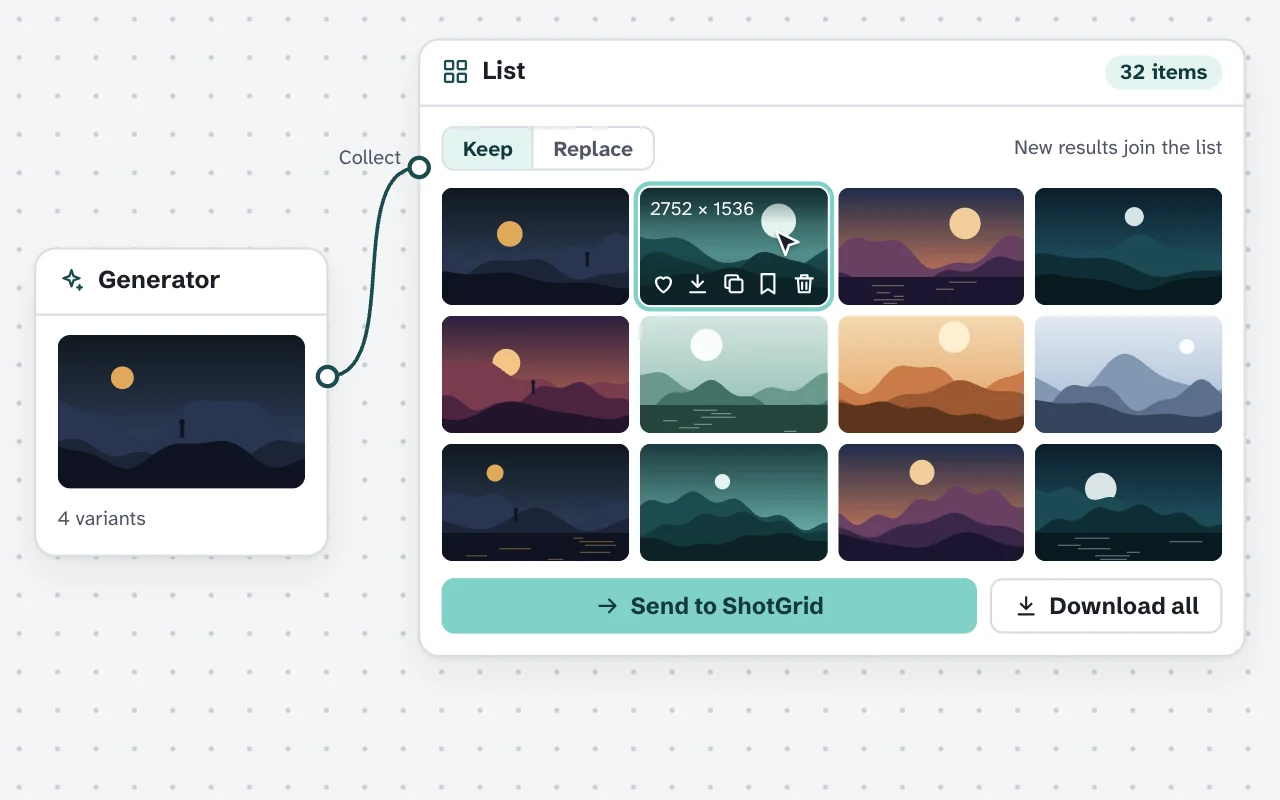
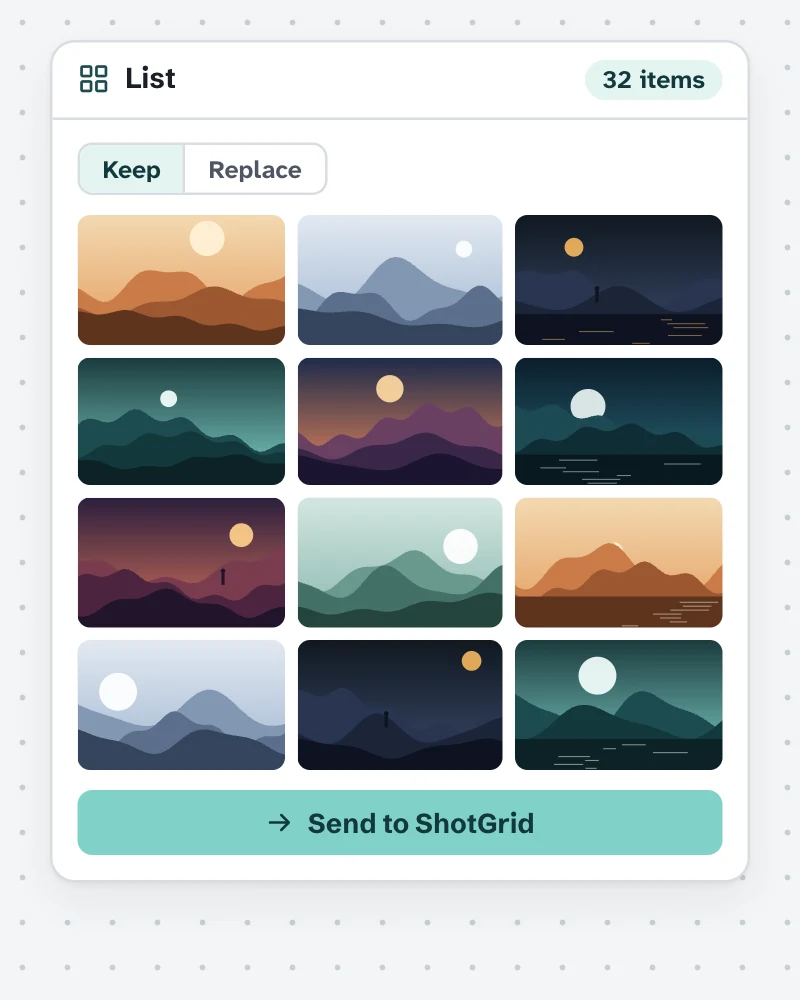
  5. A List node holding 32 outputs, with a Send to ShotGrid button.

    NextClose the loop between prompts and approved work. Read the long version

Frames 2 to 5: images are representative.

How it fits into the pipeline

Artists work in one canvas. The tool reaches the models through the studio’s relay, and sends finished work into ShotGrid.

How the tool fits into the studio pipeline The artist works in the tool. The tool calls many image and video models through the studio relay, where the keys stay. A checked send goes from the tool into the studio pipeline: a ShotGrid Version, the version store and dailies. Plates and approved media come back from the pipeline onto the canvas. generate checked send plates and approved media Artist prompts, picks and sends The tool one canvas for many models Studio relay keys stay here AI models Gemini, GPT image, Veo, Kling, Seedance, Wan Studio pipeline a ShotGrid Version linked to the shot, the version store and dailies How the tool fits into the studio pipeline generate send, media back Artistprompts and sends The toolone canvas, many models Studio relaykeys stay here AI modelsGemini, GPT image, Veo,Kling, Seedance, Wan Studio pipelineShotGrid Version,store and dailies

Before: images made outside the pipeline

Artists downloaded and renamed every image by hand, with a key on every machine.

An AI image only helps a studio once it is in the pipeline. It needs the studio’s file name. It needs a stored version, linked to the right shot.
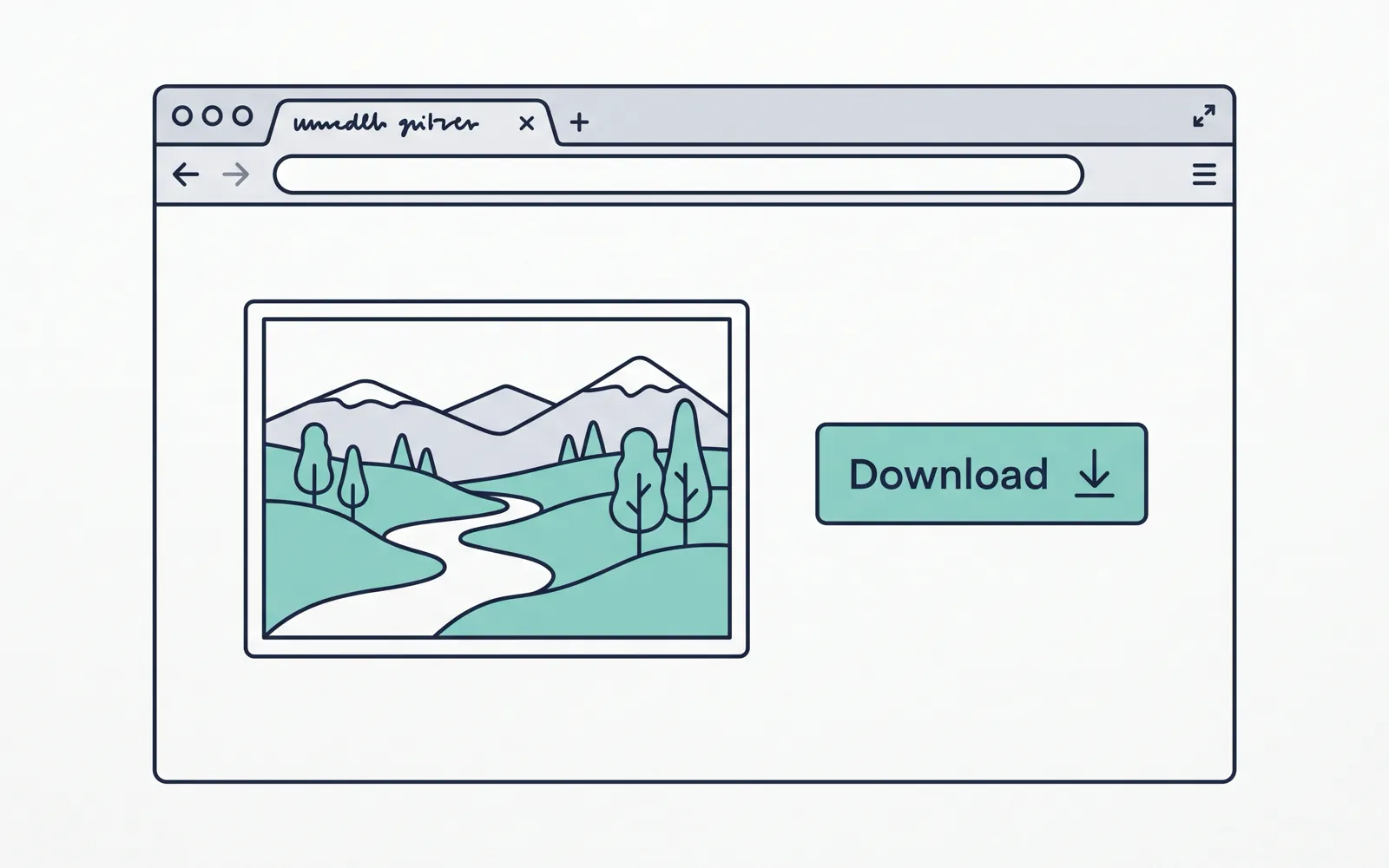
  1. Illustration: a web tool with a generated picture and a Download button.

    Download by handAn outside tool makes the image. The artist downloads it.
  2. Illustration: a file being renamed by hand.

    Rename by handThey rename the file to fit the studio’s rules, and hope it passes.
  3. Illustration: a ring of keys, one for each machine.

    Keys on every machineEach artist also needs their own account and key.

Illustrations I made with the tool.

The product: one canvas for AI images and video

A node canvas, a quick form, and one gallery for every output.

The tool runs in the artist’s browser. Artists wire nodes together on a canvas, or use a simple form. Every output lands in one gallery.
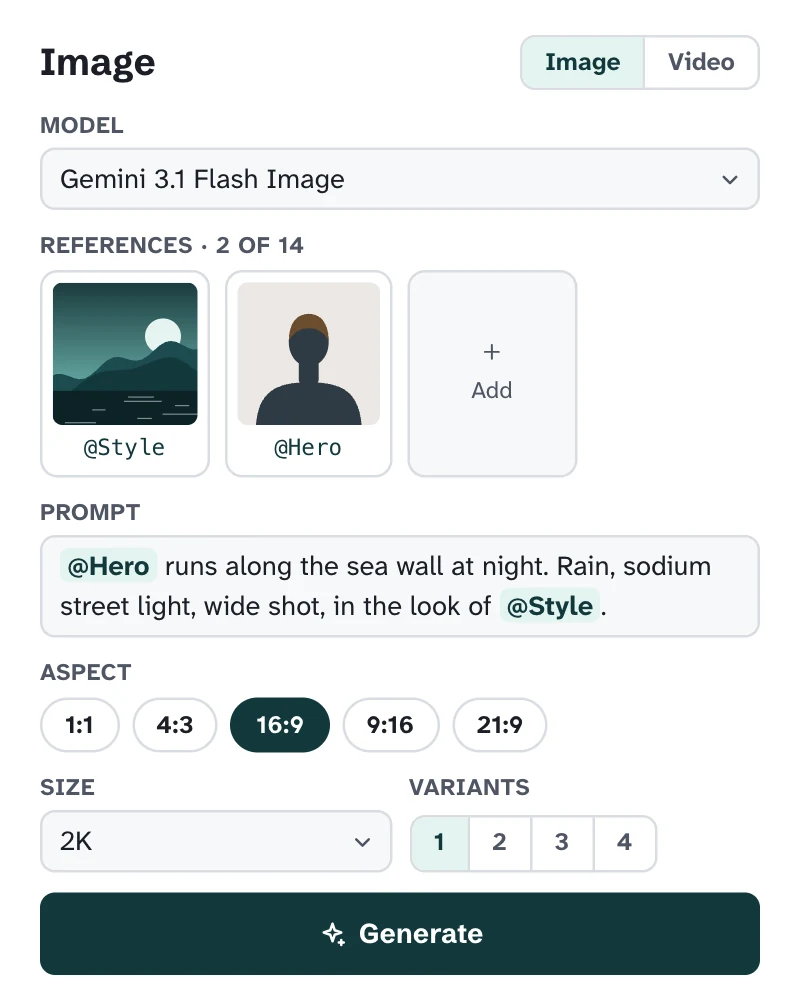
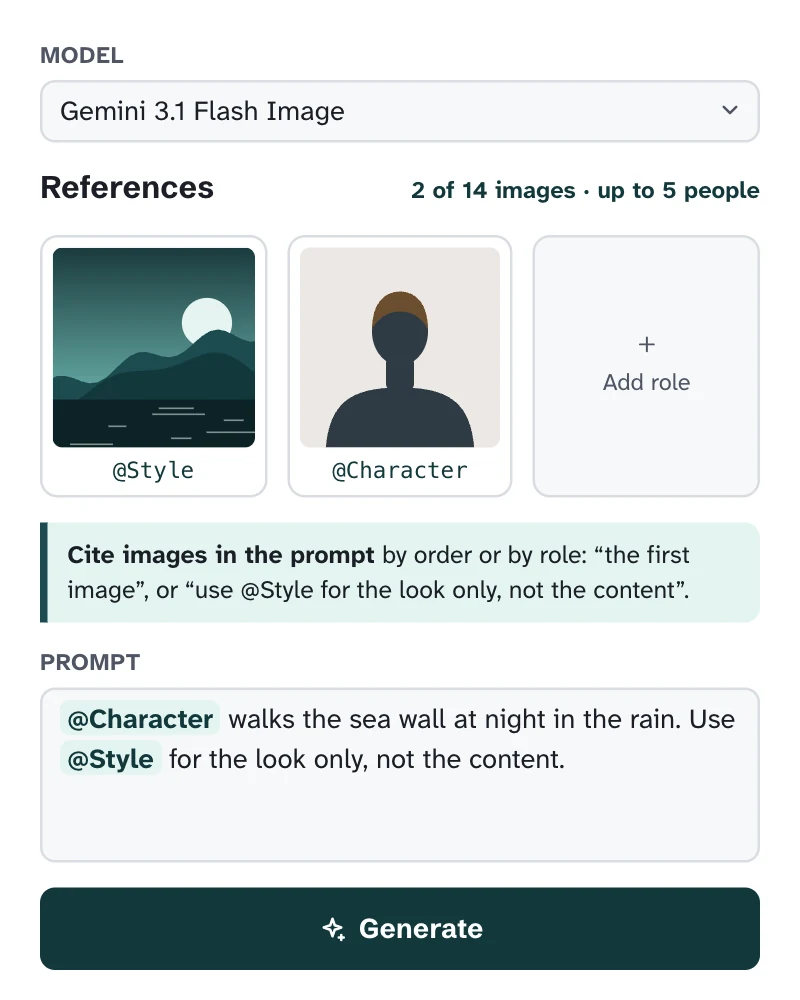
  • The Image form: a model menu set to Gemini 3.1 Flash Image, slots for style and character references, a prompt, and aspect buttons with 16:9 picked.
    The quick way: the Image formPick a model, add up to 14 reference images, write a prompt and choose an aspect.
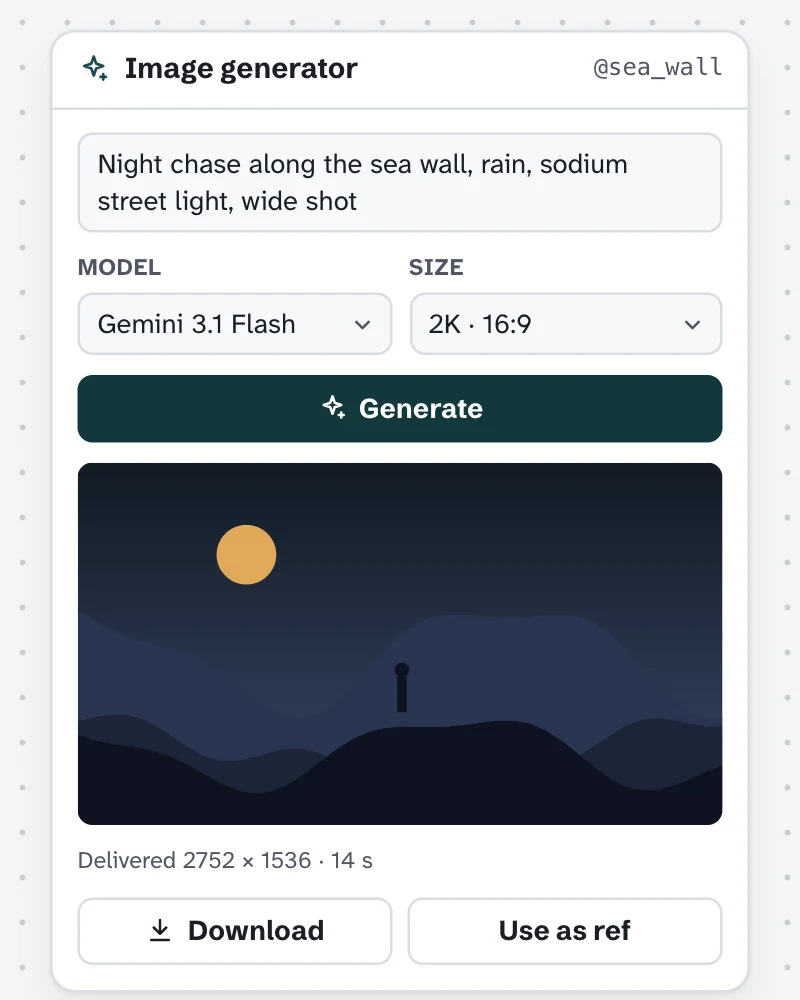
  • A generator node: prompt, model, size 2K at 16:9, a Generate button, and the result below it, delivered at 2752 by 1536, with Download and Use as ref.
    On the canvas: a generator nodeThe same controls, as a node. The result appears under the button, ready to download or reuse as a reference.
  • A List node showing a grid of outputs and the count, 32 items.
    The List: every resultA List node gathers results as they arrive. This one holds 32.
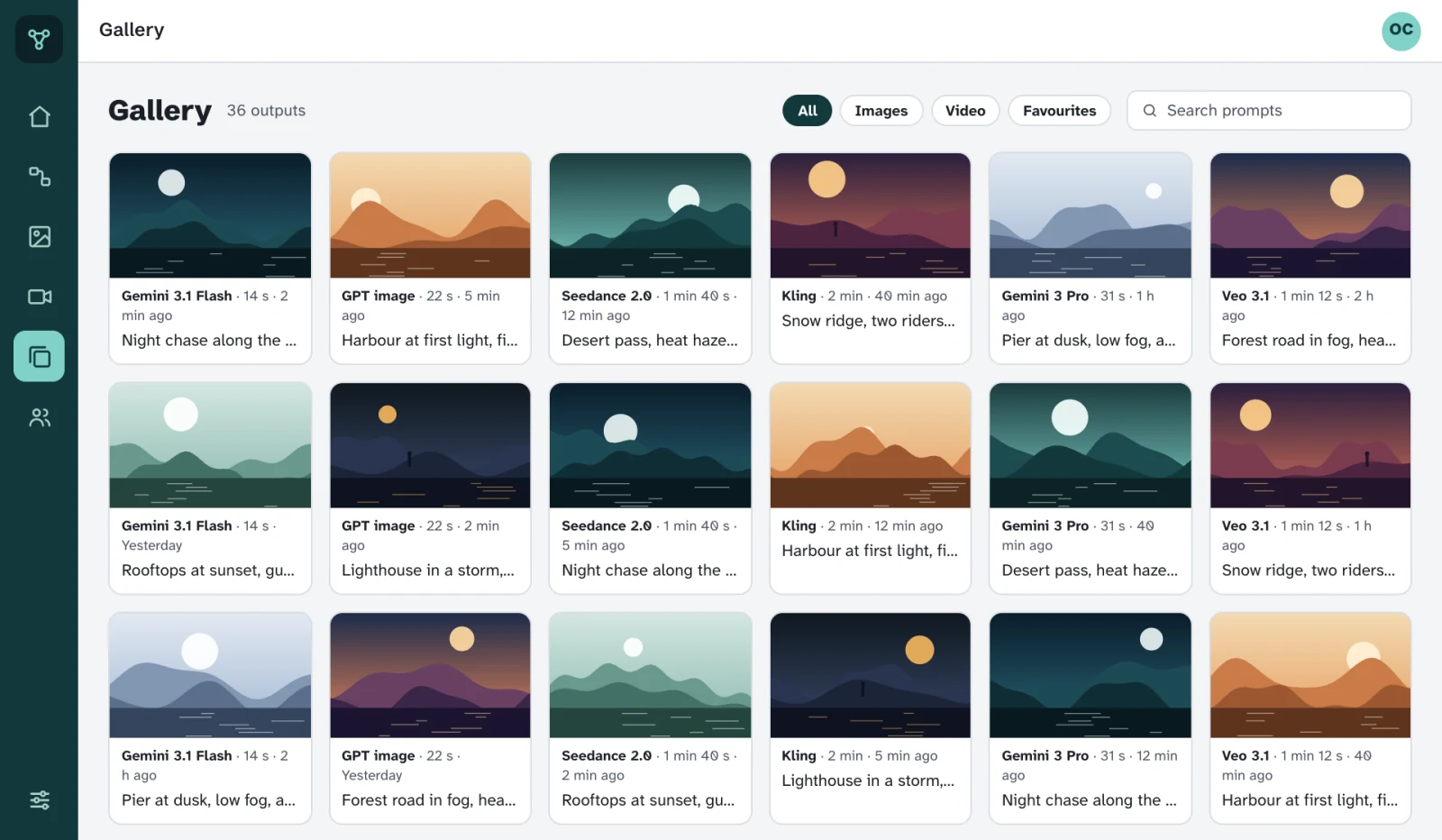
The Gallery: outputs in a grid, each with its model, generation time, age and prompt, and filters for images, video and favourites.
The galleryEvery output in one place, with its prompt, its model and how long it took.

Images are representative.

What artists can do

Six canvas features, and the reference rules for each model.

Six canvas features, then how the tool helps artists prompt each model with reference images.
  • A List node with 32 items, wired from a generator into its Collect input. One tile is hovered: it shows its size, 2752 × 1536, and a row of five actions. Below: Send to ShotGrid and Download all.
    Collect every result in a ListA List gathers what a generator makes. Hover a tile to favourite, download, copy its prompt, save or delete it. Keep adds new results; Replace swaps the old ones out.
  • A Filename Slate with project demo, episode 010, sequence sea, shot 0040, task harm, element render, variant main and version v0002. Below the fields, the name it builds: demo_010_sea_0040_harm_render_main_v0002. It is wired into a List whose tiles carry the name.
    Name every file from the shot codesThe Filename Slate builds the studio file name from the shot codes, task, element, variant and version. Wire it into a List, and every download and publish from that List takes the name. Nobody types a file name.
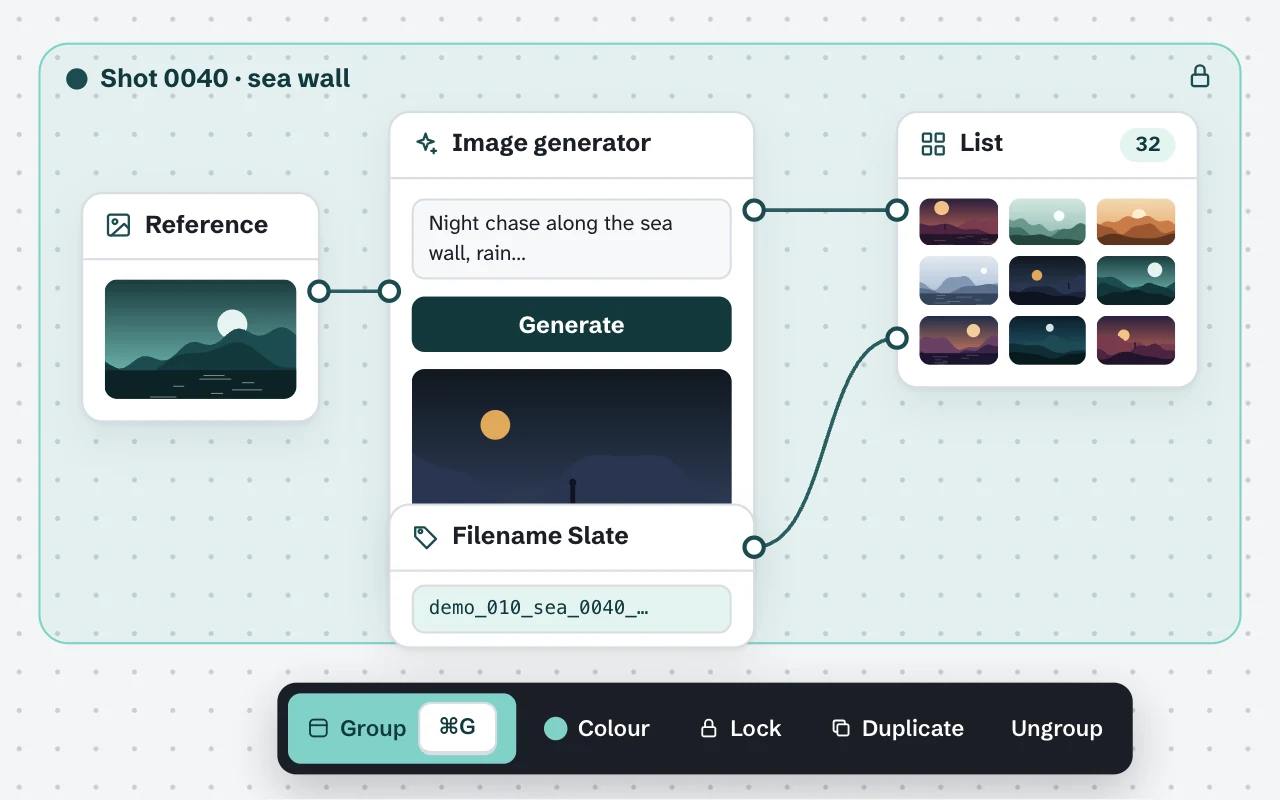
  • A Group box drawn around a whole set-up: a reference node, an image generator with its result, a Filename Slate and a List, all wired together. The group’s label sits at the top left, and a toolbar below offers Group, Colour, Lock, Duplicate and Ungroup.
    Group nodes and move them as oneSelect nodes and press ⌘G, or the Group button under the selection. Drag, resize, colour, lock or duplicate the group as one. Shift-drag to lasso nodes.
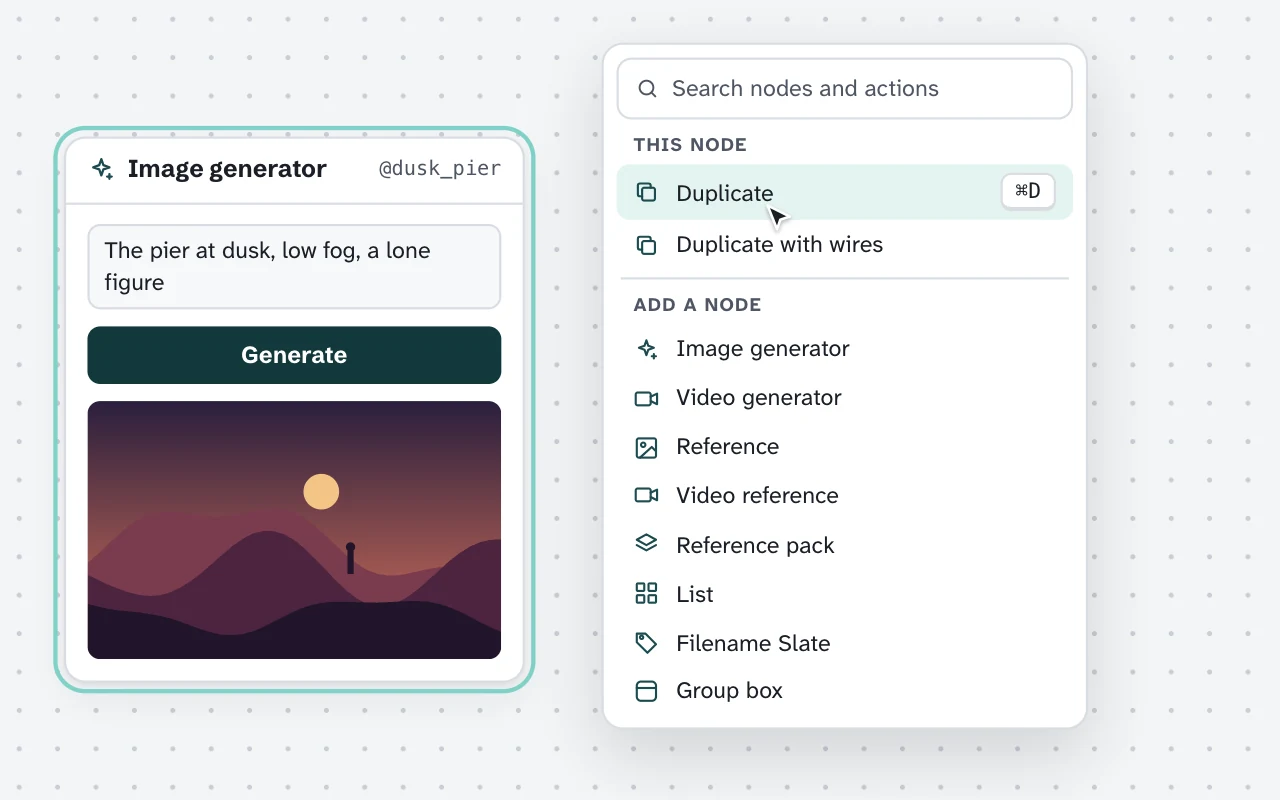
  • The canvas right-click menu beside a selected generator: a search box, then Duplicate and Duplicate with wires, then new nodes: Image generator, Video generator, Reference, Video reference, Reference pack, List, Filename Slate and Group box.
    Duplicate a node, with or without its wiresRight-click a node and choose Duplicate (⌘D), or Duplicate with wires to keep its incoming wires. The same menu adds new nodes, from Image Generator to Group Box.
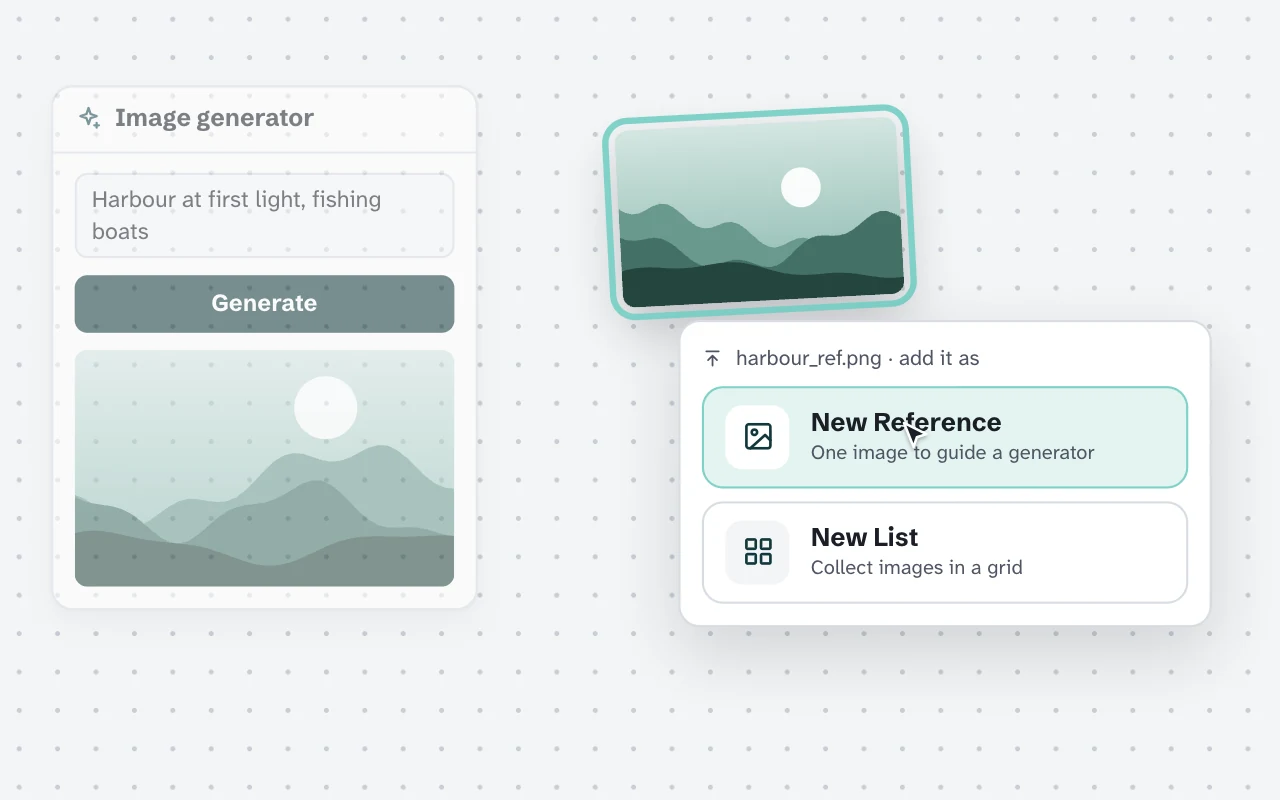
  • An image dropped on an empty part of the canvas opens a menu with two choices: New Reference, for one image, and New List, to collect images in a grid.
    Make a reference in one clickDrop an image on the canvas and choose New Reference, or press Use as ref under a result. Gallery items and List tiles offer the same, and a List tile can also save to the library.
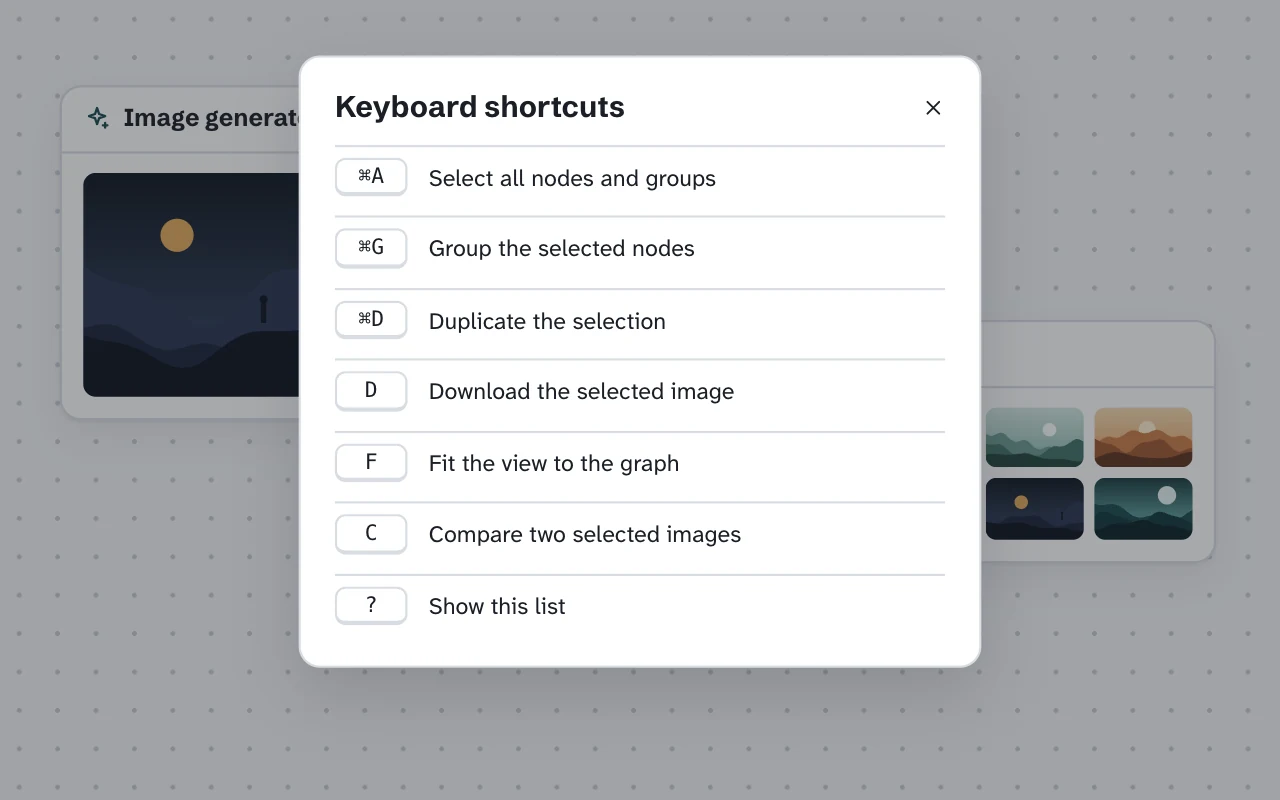
  • The Keyboard shortcuts panel: ⌘A selects all nodes and groups, ⌘G groups the selected nodes, ⌘D duplicates the selection, D downloads the selected image, F fits the view to the graph, C compares two selected images, and ? shows this list.
    Work from the keyboardPress ? for the list. D downloads the selected image, F fits the view, and C compares two selected images.

Images are representative, with made-up shot codes.

How to prompt with references, model by model

Each model reads reference images in its own way. The tool shows the rules where artists pick the images, so nobody has to look them up.
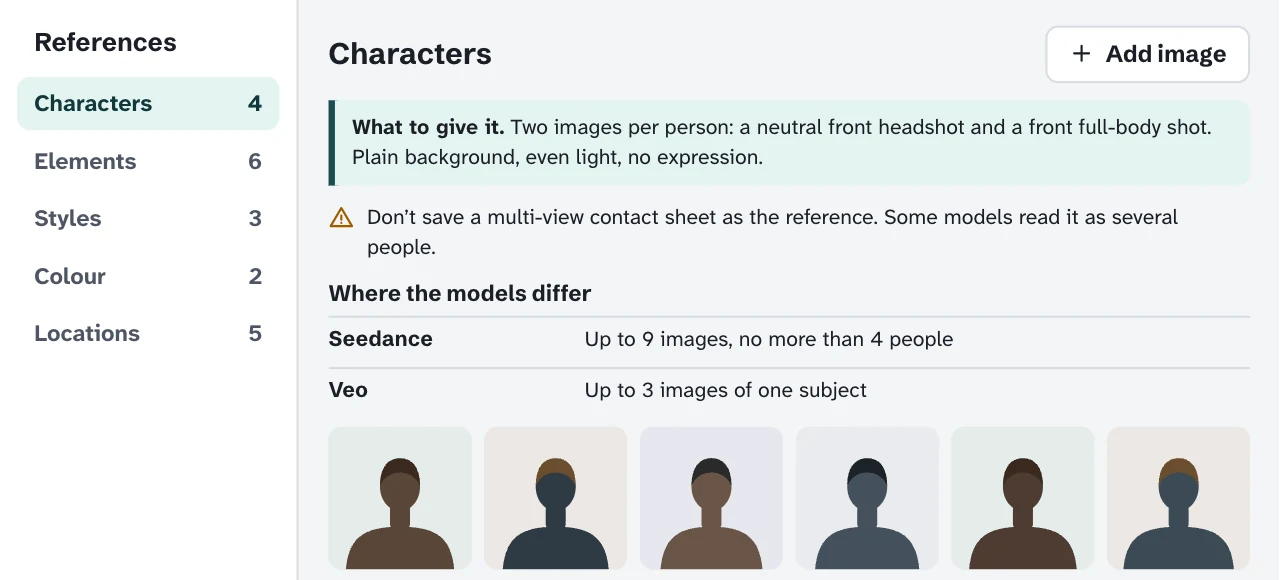
  • The Characters group in the References view. Advice: two images per person, a neutral front headshot and a front full-body shot, plain background, even light, no expression. A warning not to save a multi-view contact sheet as the reference. Below, a list headed Where the models differ.
    Sort references by what they showThe References view keeps Characters, Elements, Styles, Colour and Locations apart. Each group opens with what to give it.
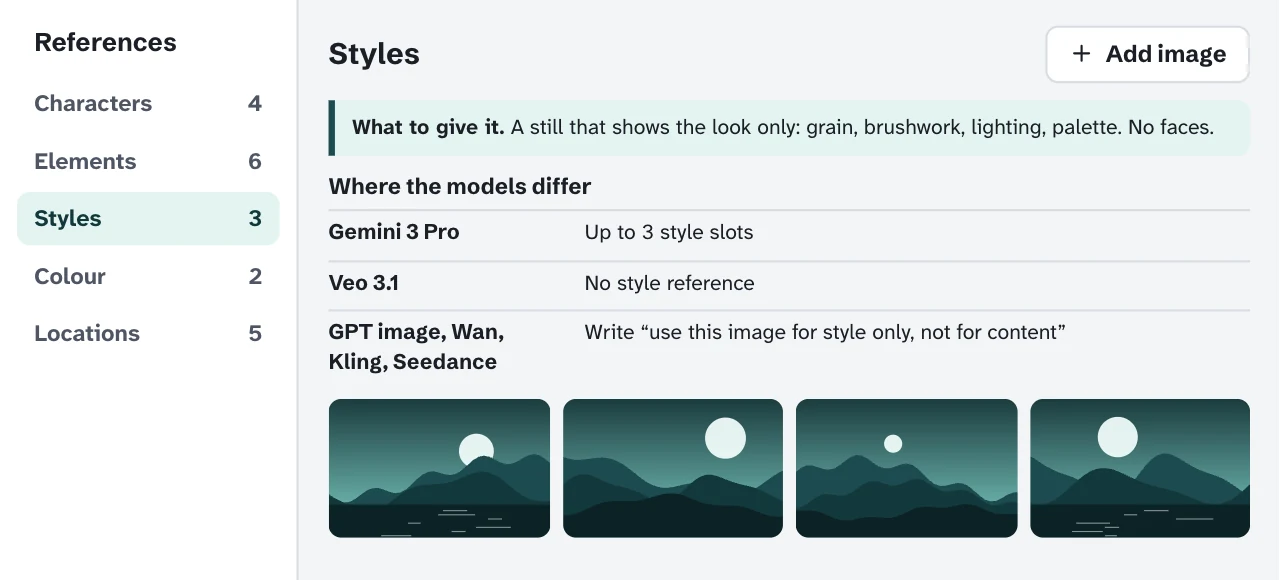
  • The Styles group. Advice: a still that shows the look only, such as grain, brushwork, lighting and palette, with no faces. Where the models differ: Gemini 3 Pro, up to 3 style slots; Veo 3.1, no style reference; GPT image, Wan, Kling and Seedance, say use this image for style only, not for content.
    See where the models differEach group then lists how the models handle that kind of reference. This is the Styles group.
The Image form with Gemini 3.1 Flash Image picked. Beside the reference slots: 2 of 14 images, up to 5 people. Slots named @Style and @Character, and an Add role slot. Below them, a tip on citing images in the prompt, then a prompt that uses @Character and @Style.
Show the limits beside the slotsThe Image form shows the model’s limits as artists add images: “2 of 14 images · up to 5 people” for Gemini 3.1 Flash Image. Named slots, such as @Style, can be cited in the prompt.

What the tool tells artists

Characters

Two images per person: a neutral frontal headshot and a frontal full-body shot. Plain background, even light, no expression.

  • Seedance: up to 9 images, but no more than 4 people.
  • Kling: 2 to 4 angles per element.
  • Veo: up to 3 images of one subject. References lock the clip to 8 seconds.
  • Gemini: up to 14 images in total, with named character and style slots.
  • GPT image: up to 16 images.
  • Hailuo 2.3: first frame only.
Styles

A still that shows the look only: grain, brushwork, lighting, palette. No faces.

  • Gemini 3 Pro: up to 3 style slots.
  • Veo 3.1: no style reference.
  • GPT image, Wan, Kling and Seedance: write “use this image for style only, not for content”.

Do not save a contact sheet as the reference. Seedance reads a multi-view sheet as several people, and Wan and Veo want one subject per image.

Cite images in the prompt by order or by role: “the first image”, or “use @Style for the look only, not the content”.

Guidance I compiled from vendor documentation on 29 September 2026. Images are representative.

How a send works, frame by frame

From a prompt to a Version in ShotGrid, in six steps.

From a prompt to a Version in ShotGrid.
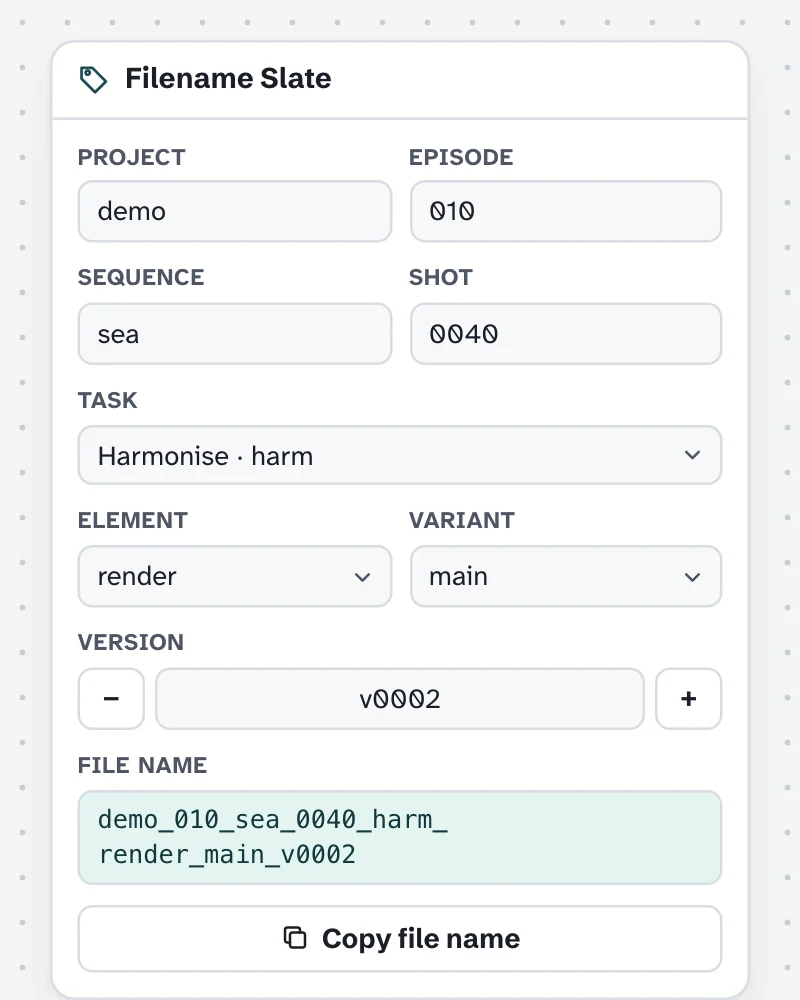
The Filename Slate: project demo, episode 010, sequence sea, shot 0040, task, element, variant and version v0002, with the file name built from them below.
The Filename Slate. Made-up shot codes become the file name demo_010_sea_0040_harm_render_main_v0002. Representative screen.

In the studio, these codes come from live ShotGrid lists.

Version numbers come from ShotGrid’s next free number. Nobody counts by hand.

File names follow the studio’s rules, so the checks pass with no renaming.

Every send lands in the studio’s version store, with dailies rendered on the farm.

Send the same file twice and the tool asks first.

Direct send shipped 7 August 2026. Hand-off to the desktop tool shipped 28 September 2026.

  1. An image generator node with its prompt, model, size and result.

    GenerateThe artist makes an image on the canvas, through the studio’s relay.
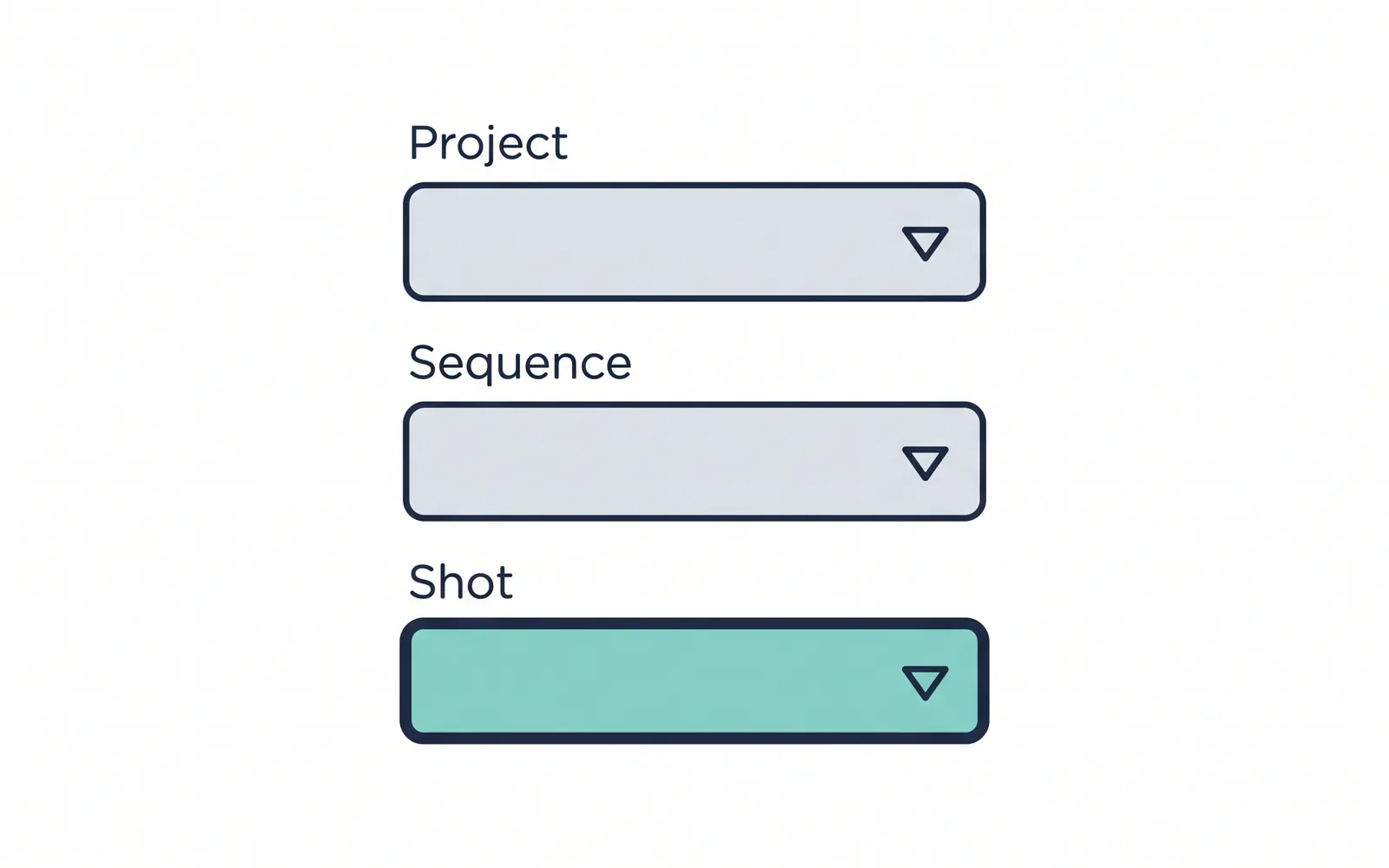
  2. Illustration: three lists for project, sequence and shot, with one shot picked.

    Pick the shotProject, sequence and shot come from live ShotGrid lists.
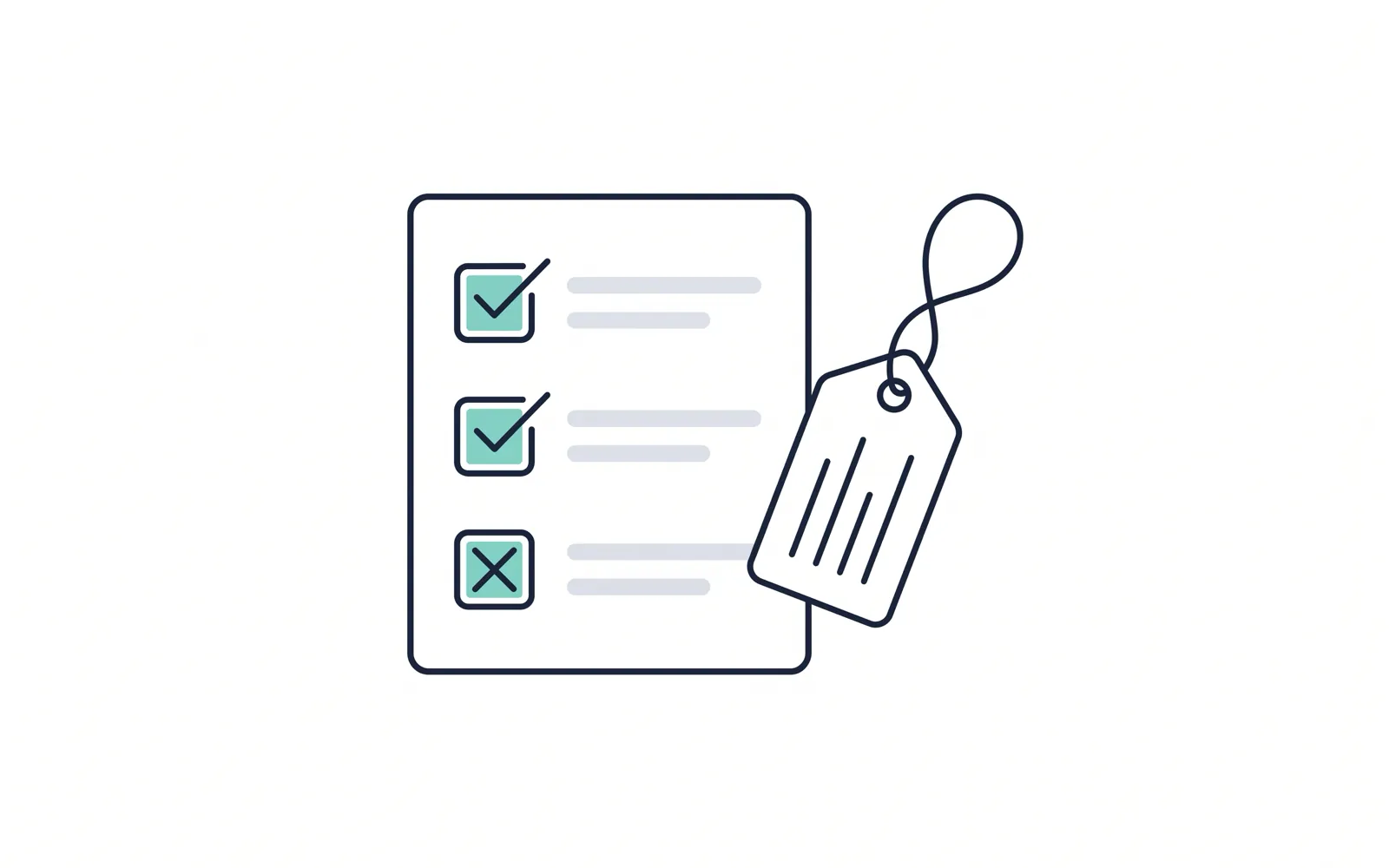
  3. Illustration: a checklist of pipeline checks, with one item to fix.

    ValidateThe pipeline’s own checks run first. A refusal comes back as a checklist.
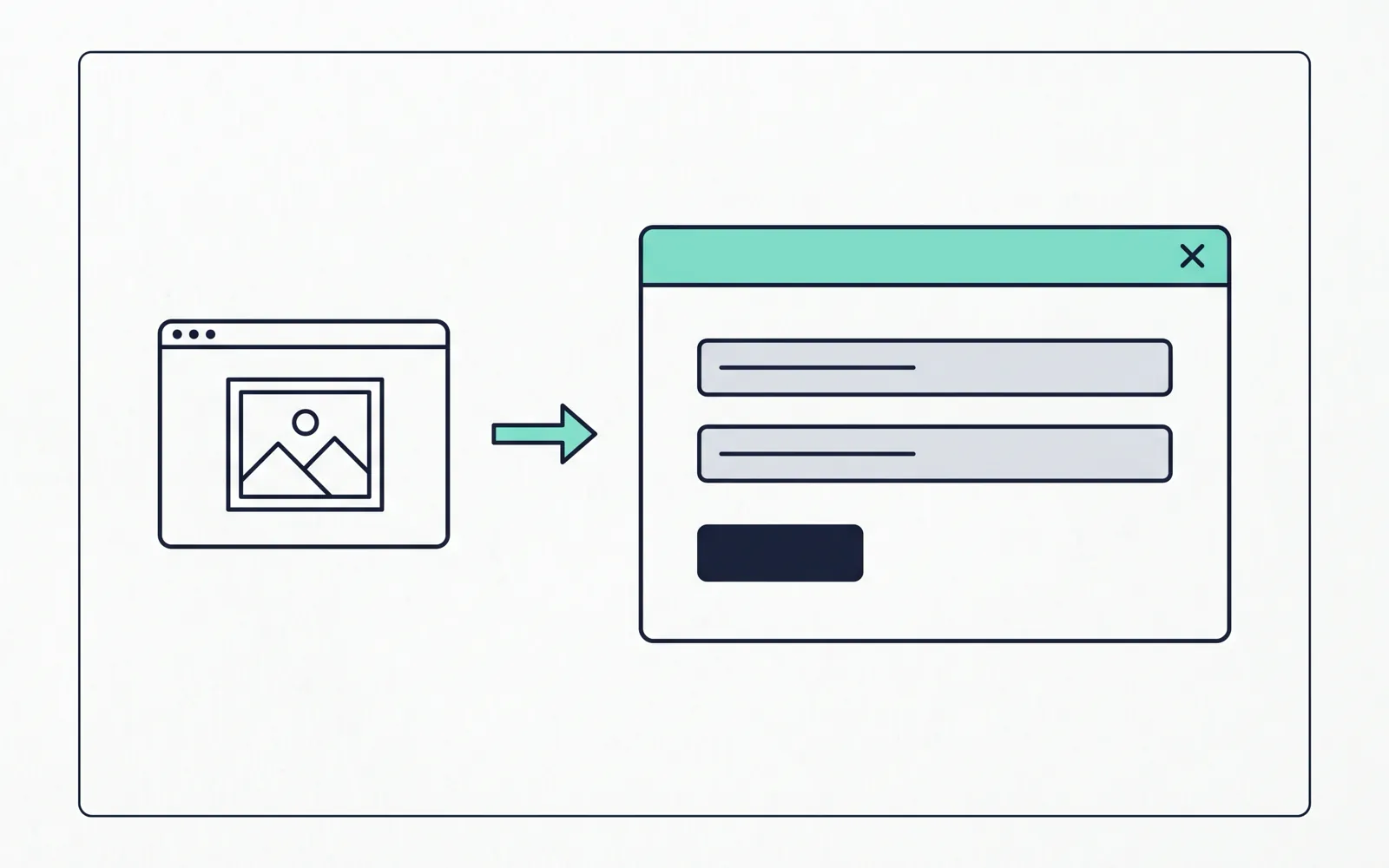
  4. Illustration: a browser window hands a file to a desktop app.

    Hand offThe desktop Submission tool takes the file and creates the Version.
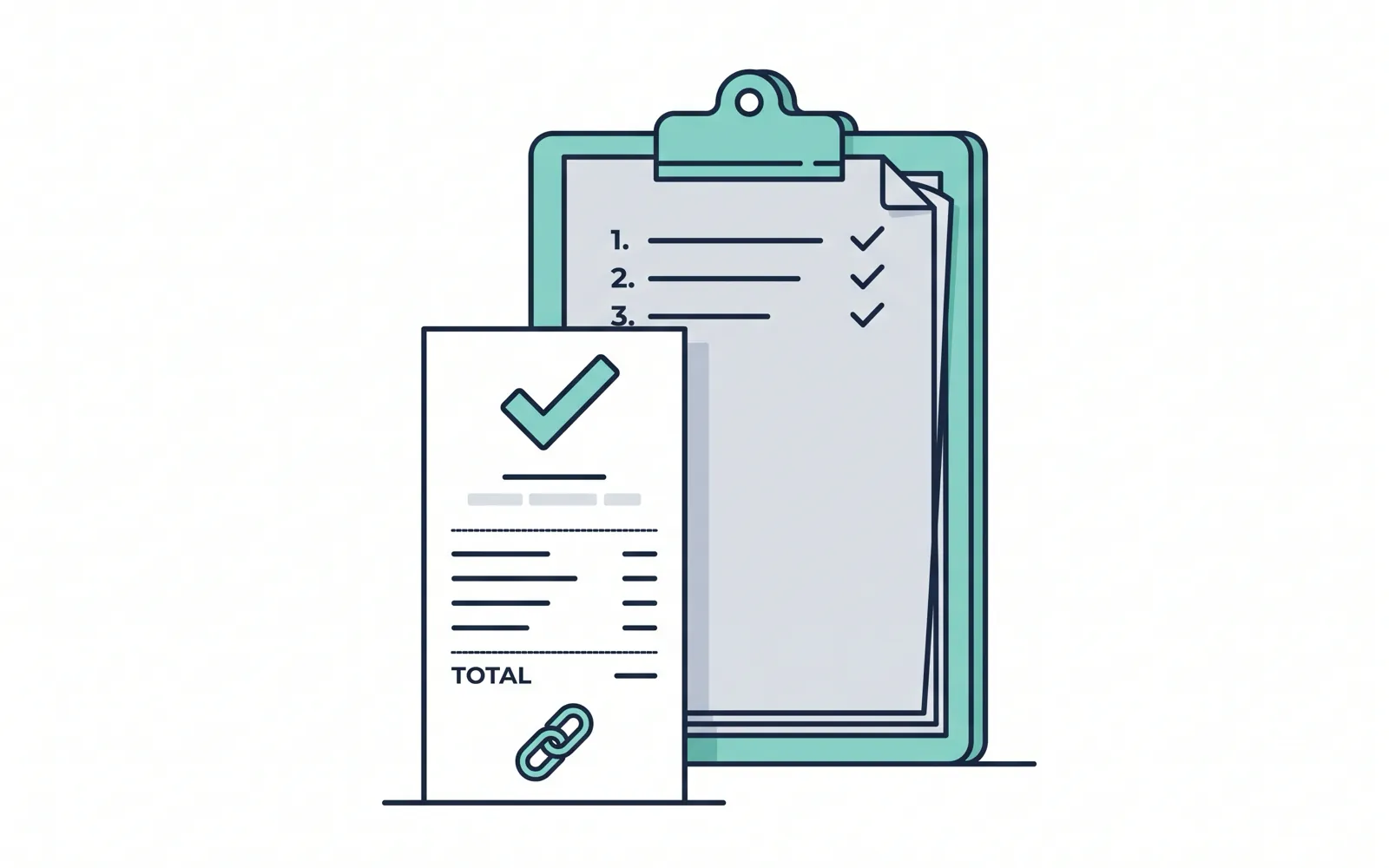
  5. Illustration: a receipt with a tick that links to the new version.

    ReceiptA receipt in the tool links back to the new Version.
  6. Illustration: a dashboard of sends by person, sequence and task.

    TelemetryThe send is logged by person, sequence and task, for the funnel.

Frame 1: a representative screen. Frames 2 to 6: illustrations I made with the tool. The studio’s ShotGrid screens stay private.

The system in detail

Every part around the artist, and how the work moves between them.

The artist works in the browser. Everything else happens around them.

Where the tool sits, in detail The artist works in the generation tool, in the browser. The tool calls model providers through the studio relay. A send goes to the desktop Submission tool. The Submission tool creates the Version in ShotGrid, files the work in the version store and logs the send for the telemetry funnel. Pipeline media comes back from the version store to the generation tool. generate send file and dailies pipeline media Model providers direct provider APIs Studio relay 3 routes, keys stay here Artist prompts, picks and sends Generation tool canvas in the artist’s browser Submission tool desktop app, runs after the checks ShotGrid Version, linked to the shot Version store farm-rendered dailies Telemetry funnel for each person Where the tool sits, in detail generate send Model providersdirect provider APIs Studio relay3 routes, keys here Artistprompts and sends Generation toolartist’s browser Version storefarm-rendered dailies Submission tooldesktop, after checks Telemetryfunnel per person ShotGridVersion, linked

Model calls go through the studio’s relay, so no keys sit on artist machines. A send passes the checks first. Then the desktop tool files it in ShotGrid and the version store, and logs it for the funnel. Pipeline media flows back onto the canvas.

What it changed for artists

Five changes, each with the date it shipped.

The first three fix the three steps in “Before”. Dates are ship dates.

Send to ShotGrid from the canvas

Before: download by hand from an outside tool.

Now: pick the shot from live lists, pass the checks, and get a receipt that links to the Version.

Direct send 7 August 2026. Desktop hand-off 28 September 2026.

Names that pass first time

Before: rename by hand and hope it passes.

Now: files follow the studio’s naming rules, so pipeline checks pass unchanged.

July 2026.

No keys on artist machines

Before: an account and a key on every machine.

Now: the studio manages access to the model providers, over three routes.

August 2026.

Pipeline media on the canvas

Artists pull approved and working media, including plates, onto the canvas.

Stable release, September 2026.

Every send on a dashboard

Each send is tagged by person, sequence, task and status. A funnel shows opens, sends, failures and work ready for review.

July to August 2026.

No time-saved or adoption figure is given here, because none has been measured.

Model access and cost

Three studio routes to the models, and an estimated 30 to 60% saving.

Artists generate through three studio-managed routes to the model providers. Provider keys never sit on artist machines.

Colleagues built most of the relay underneath. My part was access for each person on top of it, and one direct provider route.

I set up direct deals with model providers. They brought early access and free tokens for research. Going direct to provider APIs, not image aggregators, also costs less.

Going direct also unblocked big references: artists work at 2K and 4K, a 4K PNG is often over 20 MB, and at the time the image aggregator capped an upload at about 20 MB. Sent inline to Google, a big reference often failed. Since 24 September 2026, the tool sends any reference over 8 MB through Google’s Files API, by way of the studio relay: Google stores the image for 48 hours and the model reads it from a link, so far larger references go through. The upload is reused across parallel variants, and if it fails the tool sends the image inline as before. Bigger references mean better detail for the model to work from.

3 routes
Studio-managed routes to model providers. No keys on artist machines.Shipped August 2026. Count as of October 2026.
30 to 60%
Going direct to provider APIs instead of image aggregators. My estimate is 30 to 60% on model costs.Oscar’s estimate, 2026. It compares direct API prices for ByteDance Seedance 2.0 and 2.5 and Nano Banana Pro at 4K with aggregator prices. Not checked against invoices.
25 of 25
Large 4K references passing through Google’s Files API, where two in three had failed inline.Test runs on a 5504 × 3072 PNG, ten of them in parallel, September 2026. Inline, the file hit Google’s 30-second input deadline.

How I built it, with AI agents

Coding agents steered by skills I wrote, with every change reviewed.

My role at AcmeAI covers product, AI operations, hiring and partnerships. This is the tool I built.

Product

I decided what the tool does for artists, what ships next and when it is ready, and I built it, July to October 2026.

Hiring and partnerships

I ran hiring and recruitment with AI. Candidate search across portfolio sites, CV review and interview scheduling are automated. I also set up the studio’s direct deals with model providers.

The build

The tool shares one code base, a monorepo, with the rest of the studio’s web platform. Other people’s work sits next to mine, so my changes went through pull requests.

I built it with AI coding agents, steered by skills I wrote. Three of them:

  • /shipit takes a branch to a review-clean pull request, then stops. A person merges.
  • /fix-pr-review checks each reviewer comment before acting on it.
  • hub-ux-design scores each screen against 20 UX laws before review.
See all my skills

What I learned

Four things I would tell the next team.

Put the pipeline’s rules inside the tool.

Checks run before the send. A refusal arrives as a list of fixes.

Tag the source from day one.

Each send carries a person, a task and a status. Record which tool sent it from the start too. It is harder to add later.

Keep prompts private, and plan around it.

Prompts stay in the artist’s browser, on purpose. Any measure of what works has to respect that.

Check the upload limit before the model.

When this started, the aggregator capped a reference at about 20 MB, and Google’s inline route failed on big ones. A 4K PNG is bigger. Storing the file on Google’s side for 48 hours and sending a link fixed it.
A desktop spin-off: how hard would it be?

A feasibility note on turning the canvas into a desktop app.
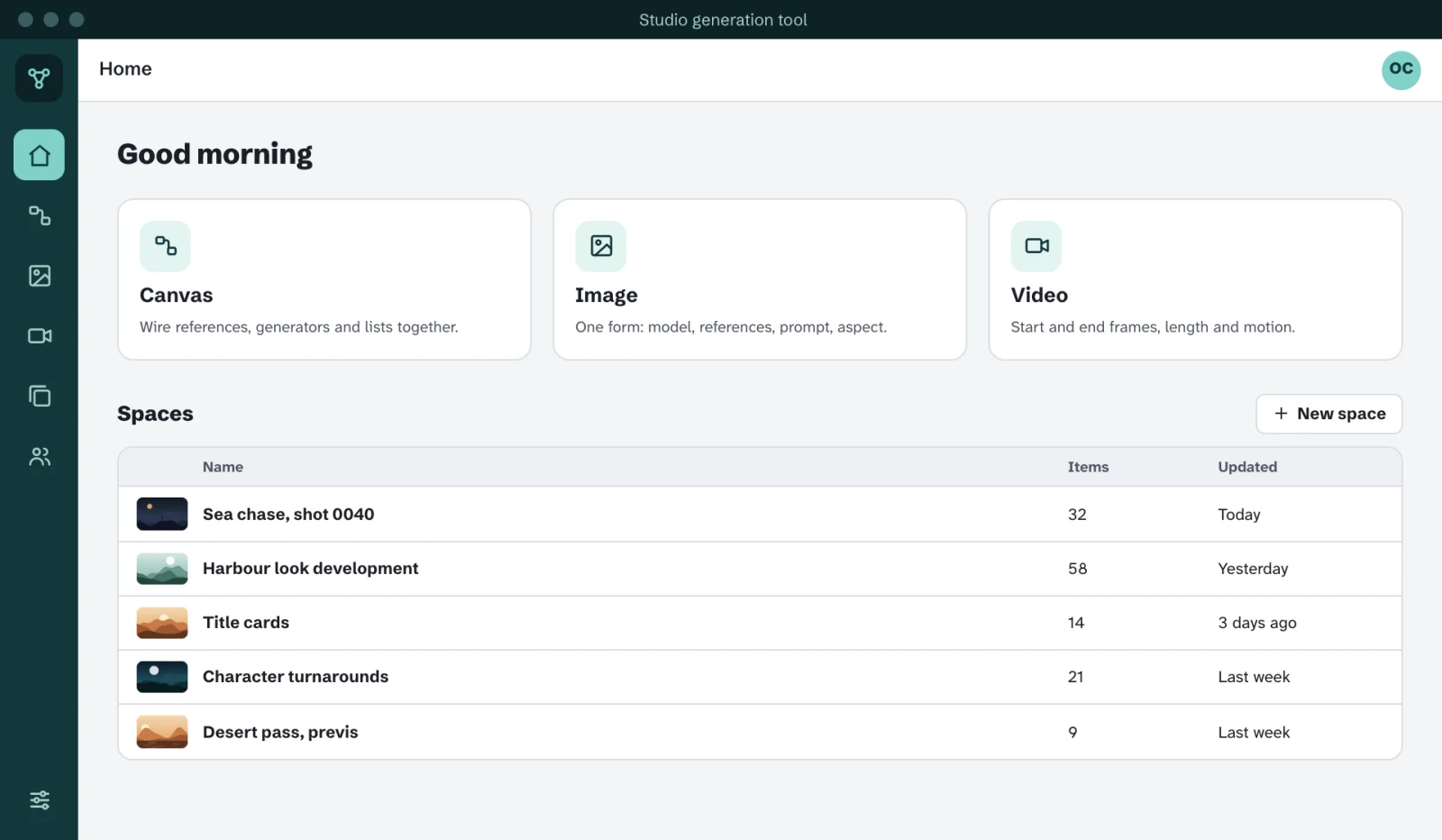
A desktop window showing the home screen: shortcuts to Canvas, Image and Video, and a list of spaces.
Representative screen.
Feasibility note

I checked how hard it would be to turn the web canvas into an Electron desktop app. Standalone means no third-party costs and simple wiring.

It is a feasibility check, so there is nothing to link to.

Building tools for artists or a studio pipeline?

Say what you are building and where it gets stuck. I read every message.

Send a message